Terminal and Shell
As mentioned, many tools we’ll use are first and foremost developer oriented tools. They typically have command line interfaces (CLI) as the lowest common denominator for using them. Some also have (optional) GUI tools on top of their CLI, with various offerings on different platforms. The technical parts of the training are set up so that a particular GUI and/or familiarity with using it are not required.
The CLI tools we will use can be used from a Terminal Emulator program, which runs a Shell program, allowing you to enter (textual) commands and providing you with the output of the commands you enter. All operating systems come with a default terminal emulator program and a shell program. For what you need for this training, these default programs will suffice. It’s also fine to use a different one, if you prefer to do that.
macOS
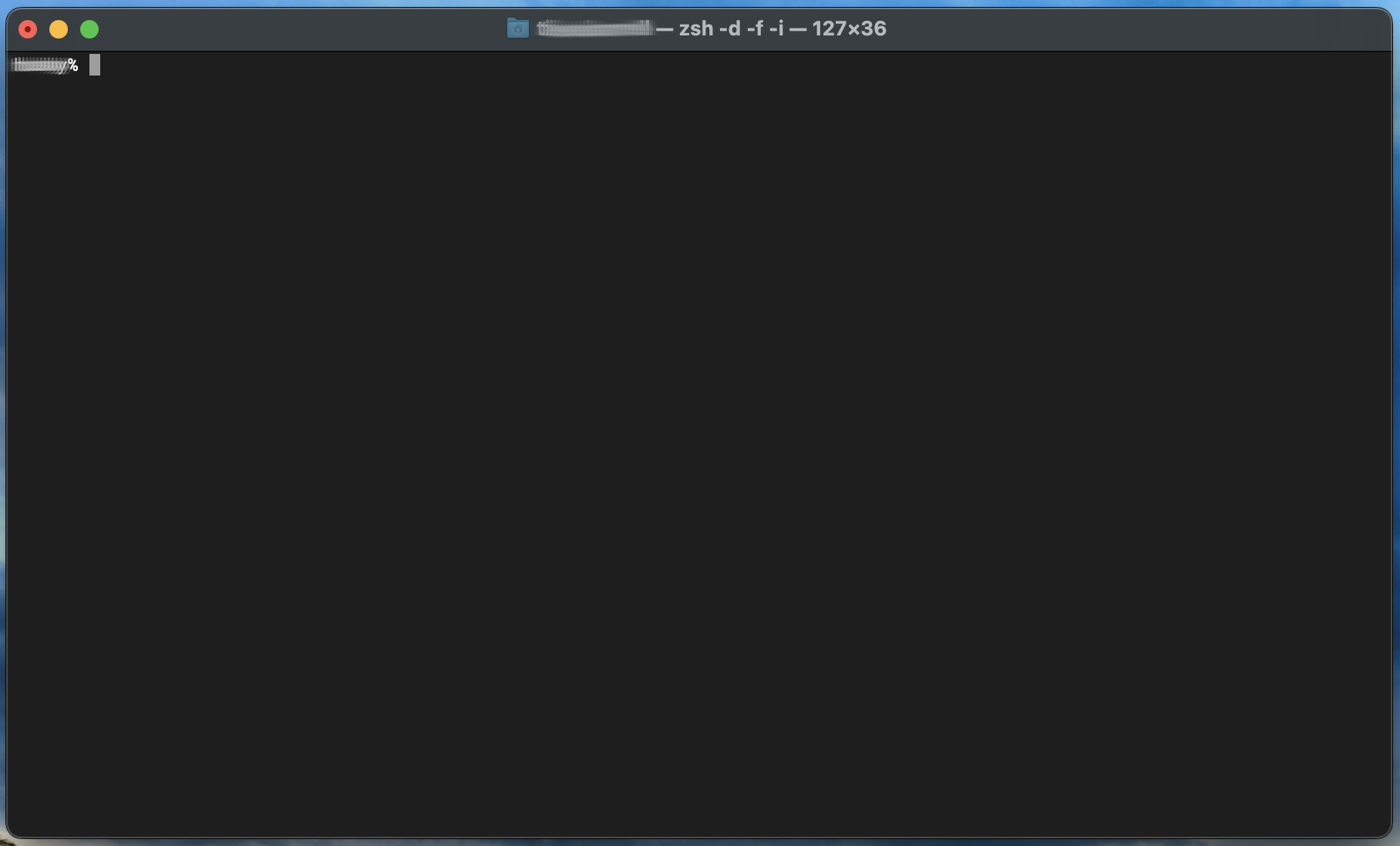
macOS comes equipped with the Terminal application out of the box.
The Z Shell or zsh is the default shell used with Terminal.
The Bourne Again Shell (bash) is also installed by default.
Open the Terminal application from the menu, or use Spotlight to start it by using Cmd+Space and typing Terminal, then selecting from the list and pressing Enter.
You can install many other terminal emulators on macOS, such as Alacritty, iTerm and kitty.
|
You can use any combination of Terminal and Shell you like to work with the command line tools for the assignments. |