Terminal and Shell
As mentioned, many tools we’ll use are first and foremost developer oriented tools. They typically have command line interfaces (CLI) as the lowest common denominator for using them. Some also have (optional) GUI tools on top of their CLI, with various offerings on different platforms. The technical parts of the training are set up so that a particular GUI and/or familiarity with using it are not required.
The CLI tools we will use can be used from a Terminal Emulator program, which runs a Shell program, allowing you to enter (textual) commands and providing you with the output of the commands you enter. All operating systems come with a default terminal emulator program and a shell program. For what you need for this training, these default programs will suffice. It’s also fine to use a different one, if you prefer to do that.
Windows
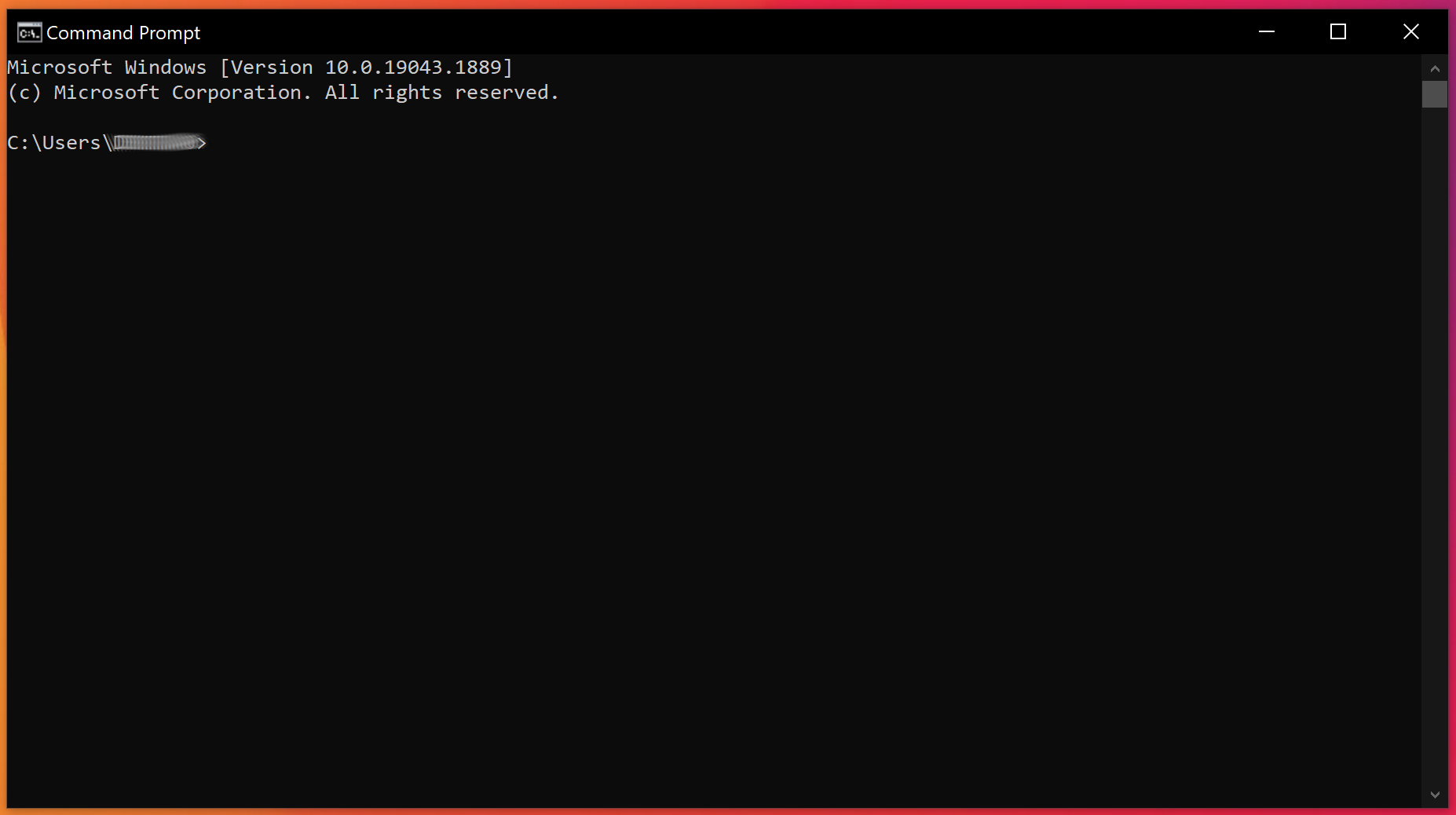
Recent versions of Windows come with at least the default Command Prompt program, which you can launch from the start menu by going to and pressing Enter.
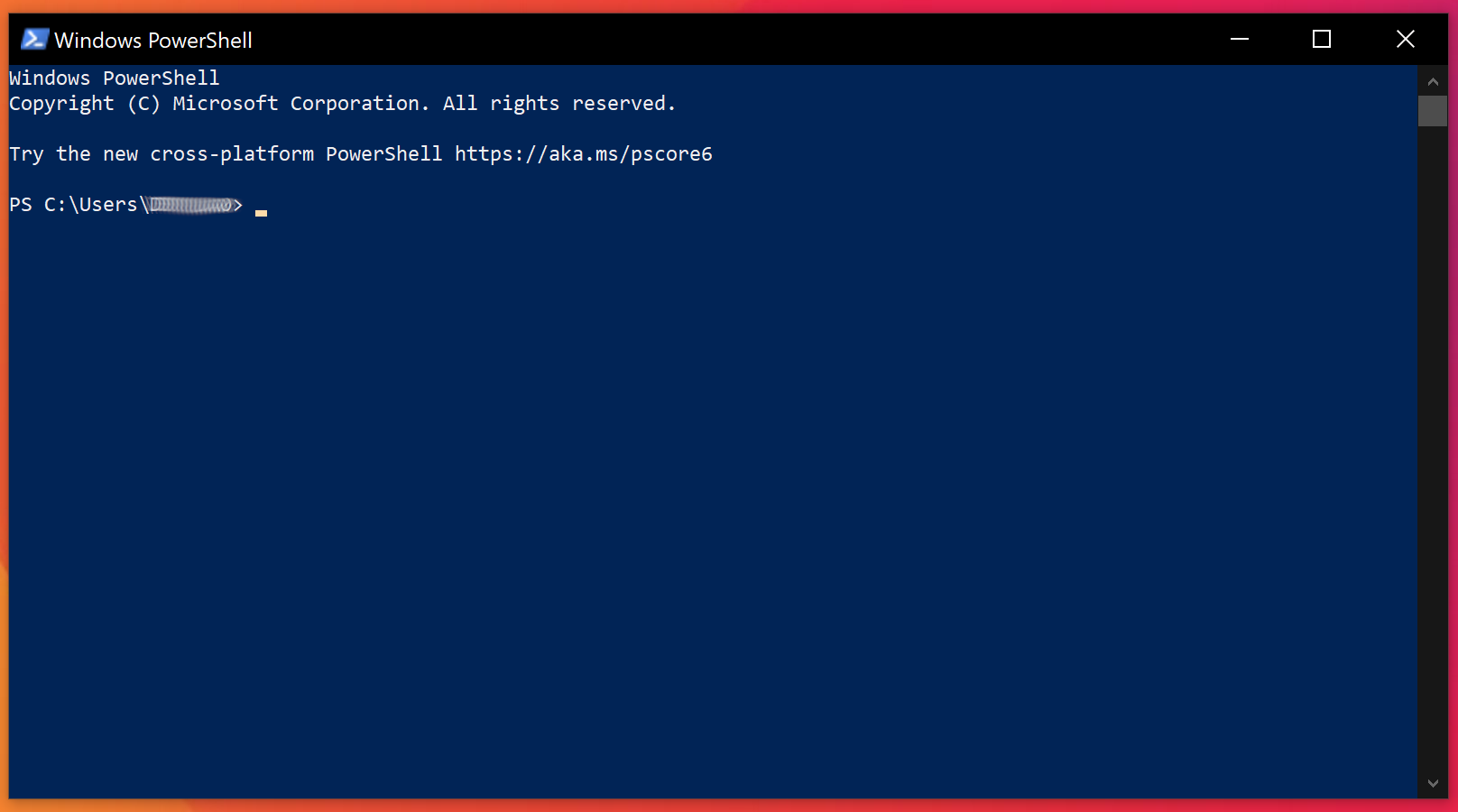
In addition, in most cases Windows Powershell is also installed, which is a more capable terminal plus shell combination. You can start it in the same way: , select from the list and press Enter.
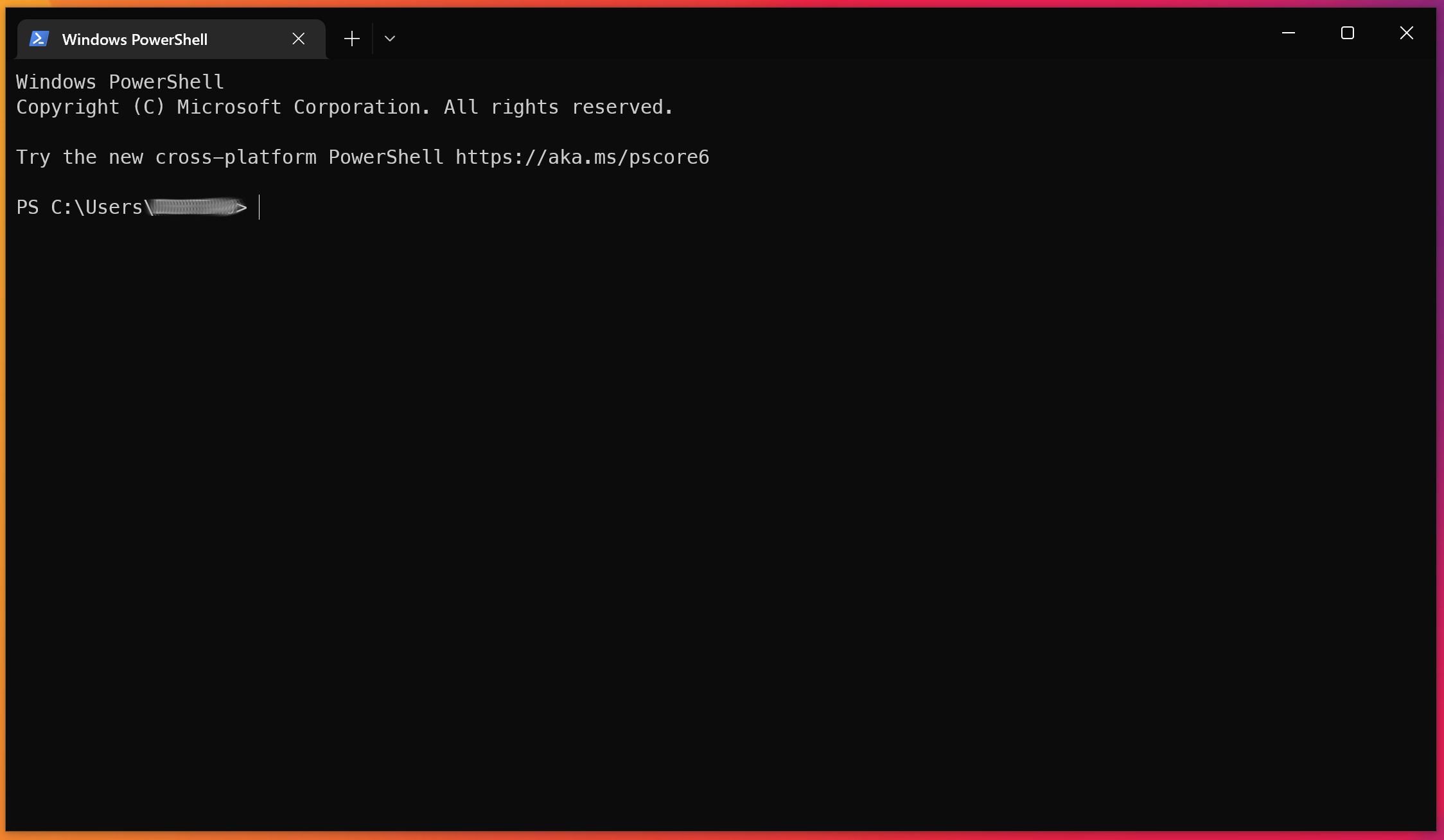
You can also install the Windows Terminal from the Windows Store. Run it with , select from the list and press Enter.
|
Copy and paste
The ability and way to copy and paste commands and their output can traditionally vary a bit with Windows shell programs, so depending on the choice you make, some slight adjustments may be needed when following along with the instructions.
|
Windows Subsystem for Linux
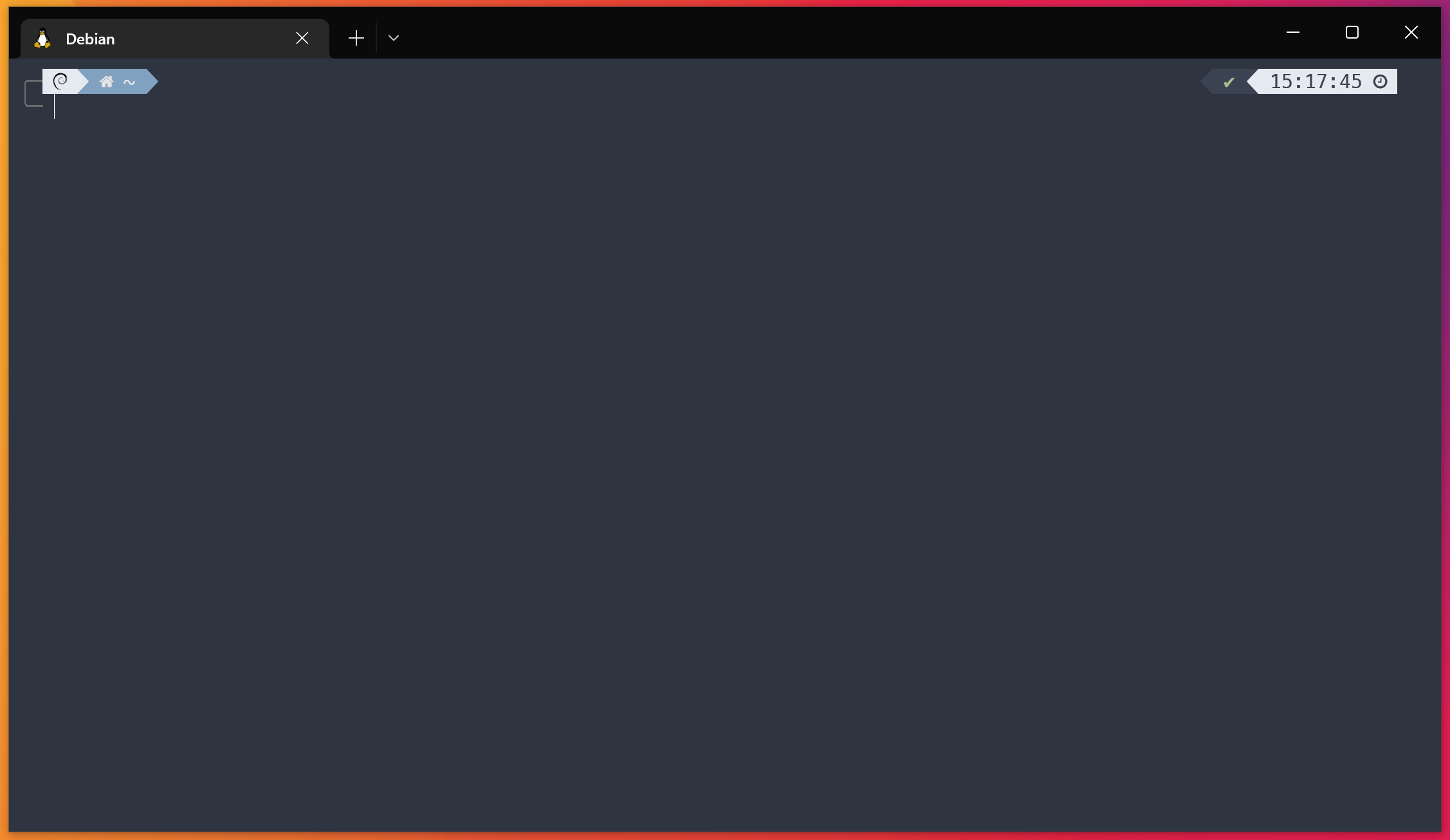
Some developers prefer the experience of Linux command line tools when working on a Windows operating system. This can be achieved by using the Windows Subsystem for Linux (WSL). You can start one of the terminal applications mentioned above and then perform a command to enter the Linux operating system in the shell. The example below shows a Debian Linux system running inside Windows Terminal with WSL.
|
Using WSL
Any of these options should work fine for the assignments. Take note that if you wish to use WSL, you should install the other tools inside the Linux operating system as well, so the commands are also available there. |