Perform a User Task
In the second execution, we want to see the other branch of the process with a human participant. To get to the user task, the other branch must be taken from the exclusive gateway. You can see that the condition for that is whether or not the offer is created for a large group. But what makes it a large group?
Go into Camunda Modeler and see if you can find the cut-off number of participants by using the properties pane.
| Hint: Exclusive gateways are configured by conditions on the outgoing sequence flows. |
Start another instance of the process and provide the values that will trigger a user task. There is no output in the container log this time, because the process could not continue to the end event yet. However, there should be a task available for performing by a user. Open the Tasklist application.
The first time, you may need to create a filter to find tasks. If there is no All Tasks filter yet, click the Create a filter link in the pane on the left to add one.
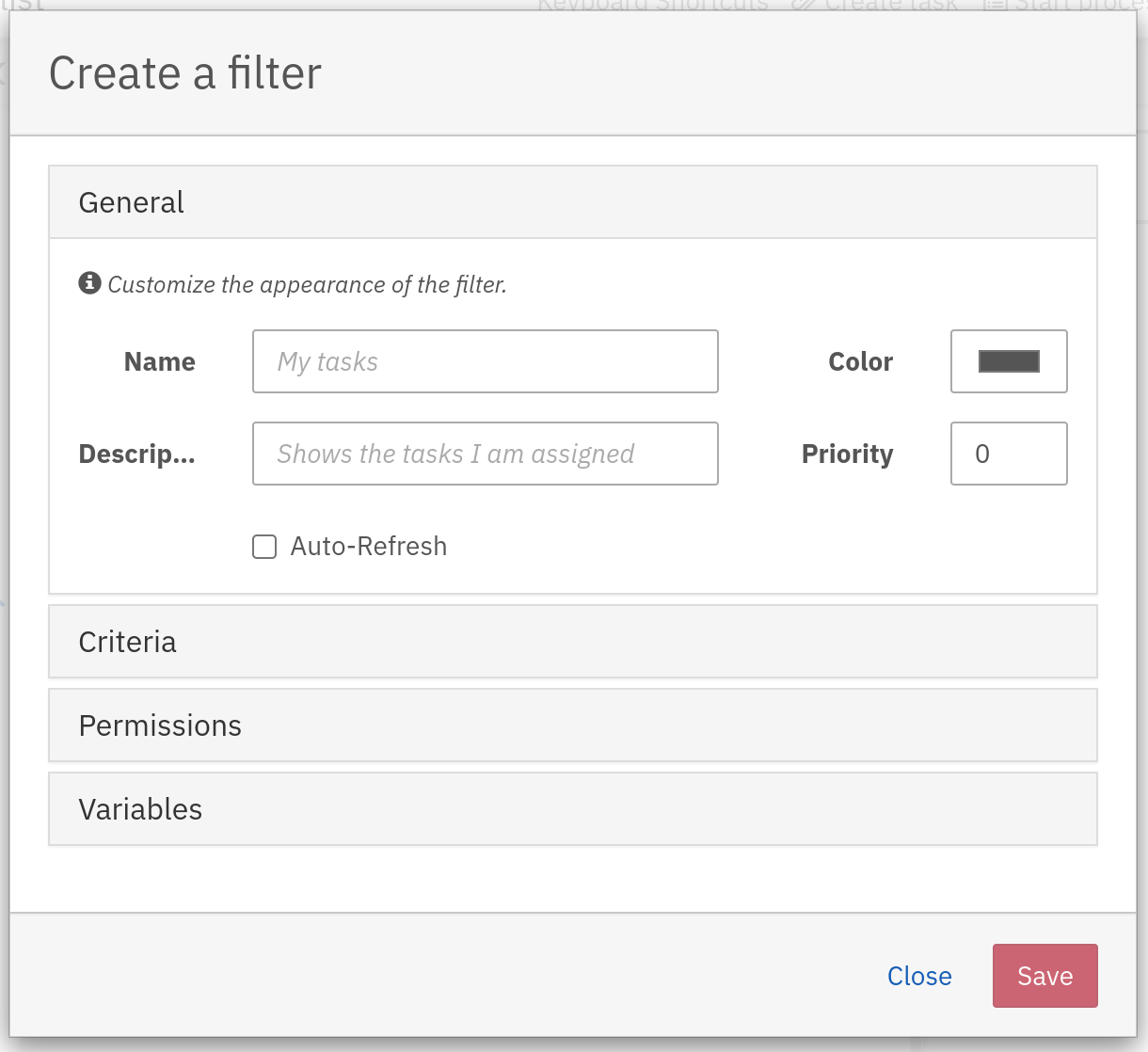
If you leave the Criteria empty, all tasks will match and will be shown in this filter. Click Save to create the new filter if needed.
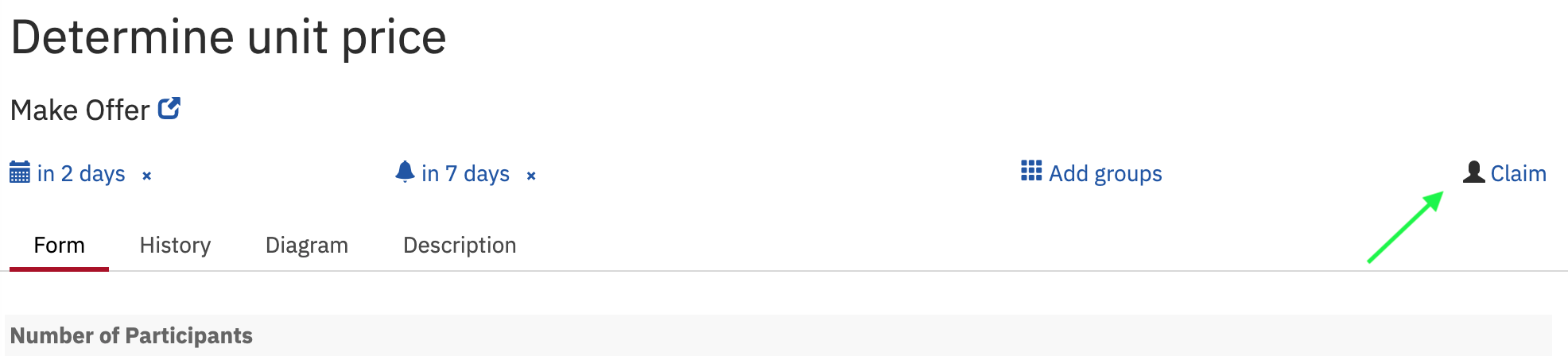
Look for a task called Determine unit price and click it in the listing. You’ll see another form in the pane on the right, which is read-only. Tasks need to be claimed by a user before they can be completed (in Tasklist). Click the Claim link above the task screen.
You can now modify the values entered in the start form and click Complete to complete the task. The container log should now show the output of the final script task and the result of the price calculation based on the values you chose.
That’s it for the first assignment, well done!