Escalating Timeout
Being able to wait for the laptop to arrive is a useful addition, but Trainink would like to be more proactive when that takes too long.
Fortunately, BPMN provides a way to model this kind of scenario, so we will leverage that in this assignment.
Go into the Camunda Modeler and drag an Intermediate/Boundary Event from the palette onto the top border of the Adopt laptop task. Change the type of the event to a Timer Boundary Event (non-interrupting) with the wrench button.
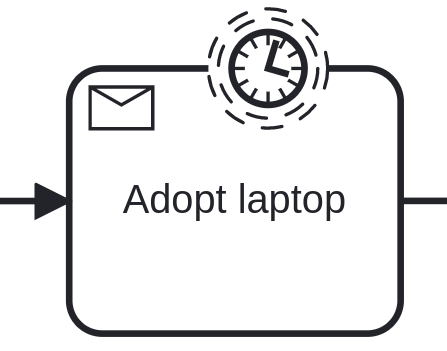
Call the event 1 minute.
This event will keep track of time for as long as the Adopt laptop task is open. If its timer expires, an additional branch of the process will be activated. Since the event is non-interrupting, the Adopt laptop task will still remain open if the timer expires. Interrupting boundary events on the other hand cancel the activity they are attached to when their event fires.
Configure the Timer
If you were to deploy the model now, it would fail because there’s some configuration to be done.
The timer boundary event on the receive task should fire after 1 minute. In the real world, the configuration would obviously allow a bit more time than that, but this will help us to test how it works. Select the timer event and choose the Duration option for the Type. That’s in the Timer configuration section of the properties pane.
Specify the ISO 8601 expression for a period of 1 minute in the Value field: PT1M.
Add Escalation
The timer event currently has no outgoing sequence flows for the escalation. Create an outgoing flow to a new exclusive gateway. Name the gateway Escalate?. Connect the gateway to a new user task, Escalate laptop order and connect that new task to an end event. Connect another end event from the Escalate? gateway to an end event. This way, there are two options if the timer fires: an escalation task is created, or the timeout is ignored. Give the flows names Yes and No.
Add the following conditions to the outgoing sequence flows of the gateway. Note that the conditions act on the same process variable as used before.
-
${dev_prod_support}for the Yes branch; -
${not dev_prod_support}for the No branch.
Save the process model and deploy it to Camunda.
Run the Process and Escalate
Start a new process instance for Onboard Developer (make sure the new developer should perform production support) and complete the Order laptop user task. Wait for at least a minute, while you navigate to Cockpit and check the process instance’s state. It’s waiting in the receive task Adopt laptop. After a minute (sometimes slightly longer) the timer event will fire and, depending on whether your new developer will support production systems, escalate or skip escalation.
| You can use the History view in Cockpit to see the historic information of the process instance and check the escalation fired, even if it didn’t create a Escalate laptop order task. |
Start another process instance for a developer not providing support for production systems and observe the process' behaviour for that case.
Speeding Things Up
When testing the process from now on, we’re too impatient to wait for the timer to expire.
In unit tests, there are convenient ways to expire a timer when you want to, in order to reach those paths quickly.
Cockpit has a similar feature that allows you to reschedule a timer when the process is running.
By changing the due date of the timer to the current time, Camunda’s JobExecutor will automatically pick up the job for the overdue timer and execute it.
At the bottom of the details of a process instance's view in Cockpit, there is a tab called Jobs. You’ll find the job for the timer there - the current due date is also displayed. At the end of the row there is a clock icon you can press that leads to a configuration screen to reschedule the job. Choose the option Set a specific date. The current time is filled in for you as the Schedule at field. Click Change to update the job’s due date to the current time.
Now you can refresh the page for the process instance.
You’ll notice one of two things: the process stays in the receive task for a while or the process has already continued.
Which behaviour you see comes down to coincidence, because the JobExecutor may need some time to pick up new overdue jobs.
As you keep refreshing if the process is still in the receive task, at some point (normally within a minute) the process will have continued.
| Expiring or changing the due date of a timer is very useful when testing processes that have timers that may take a long time to expire due to their configuration. |